logo

Subfolder hosting with Typeflo

1

Create an account in Cloudflare

Create an account in Cloudflare
2

Enter your domain that you want to migrate to Cloudflare & click "Continue"
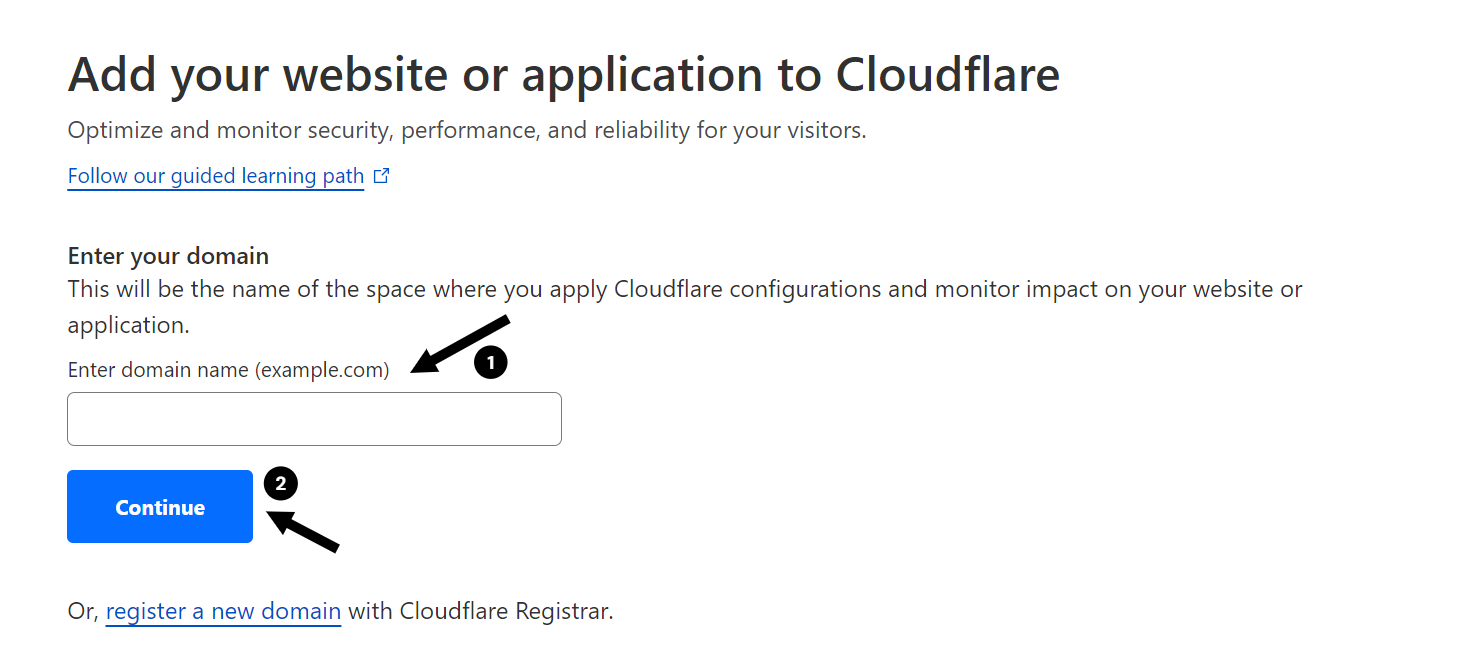
Enter your domain that you want to migrate to Cloudflare & click **"Continue"**
3

Once the above step is done, scroll down to the bottom of the page, Select "Free" plan & Click "Continue"
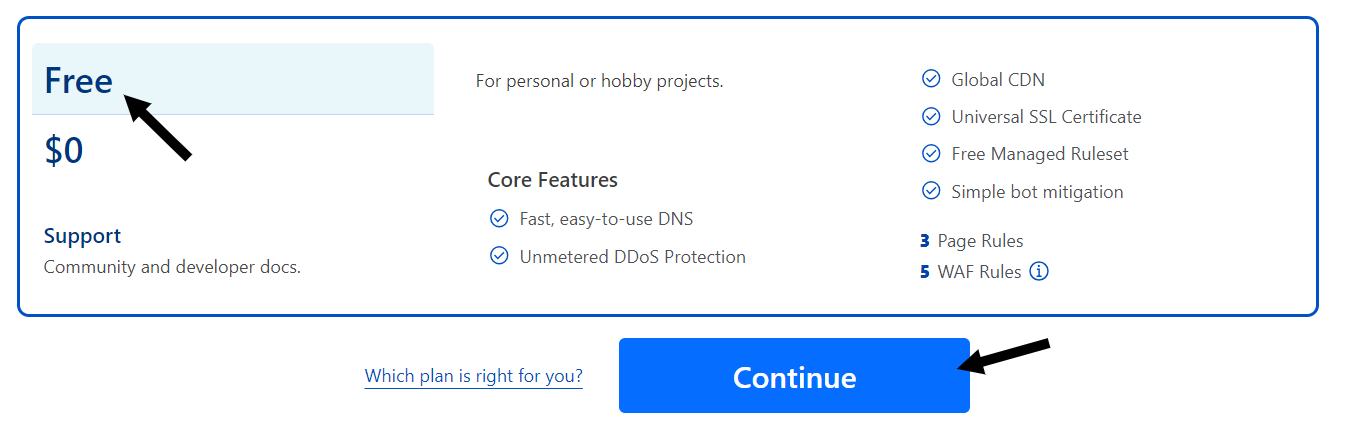
Once the above step is done, scroll down to the bottom of the page, Select **"Free"** plan & Click **"Continue"**
4

Update the namservers assigned by Cloudflare in your domain name registrar dashboard such as Porkbun, Google Domains, Godaddy, etc

Update the namservers assigned by Cloudflare in your domain name registrar dashboard such as Porkbun, Google Domains, Godaddy, etc
5

The below steps are optional which can be enabled for better perfomance and security
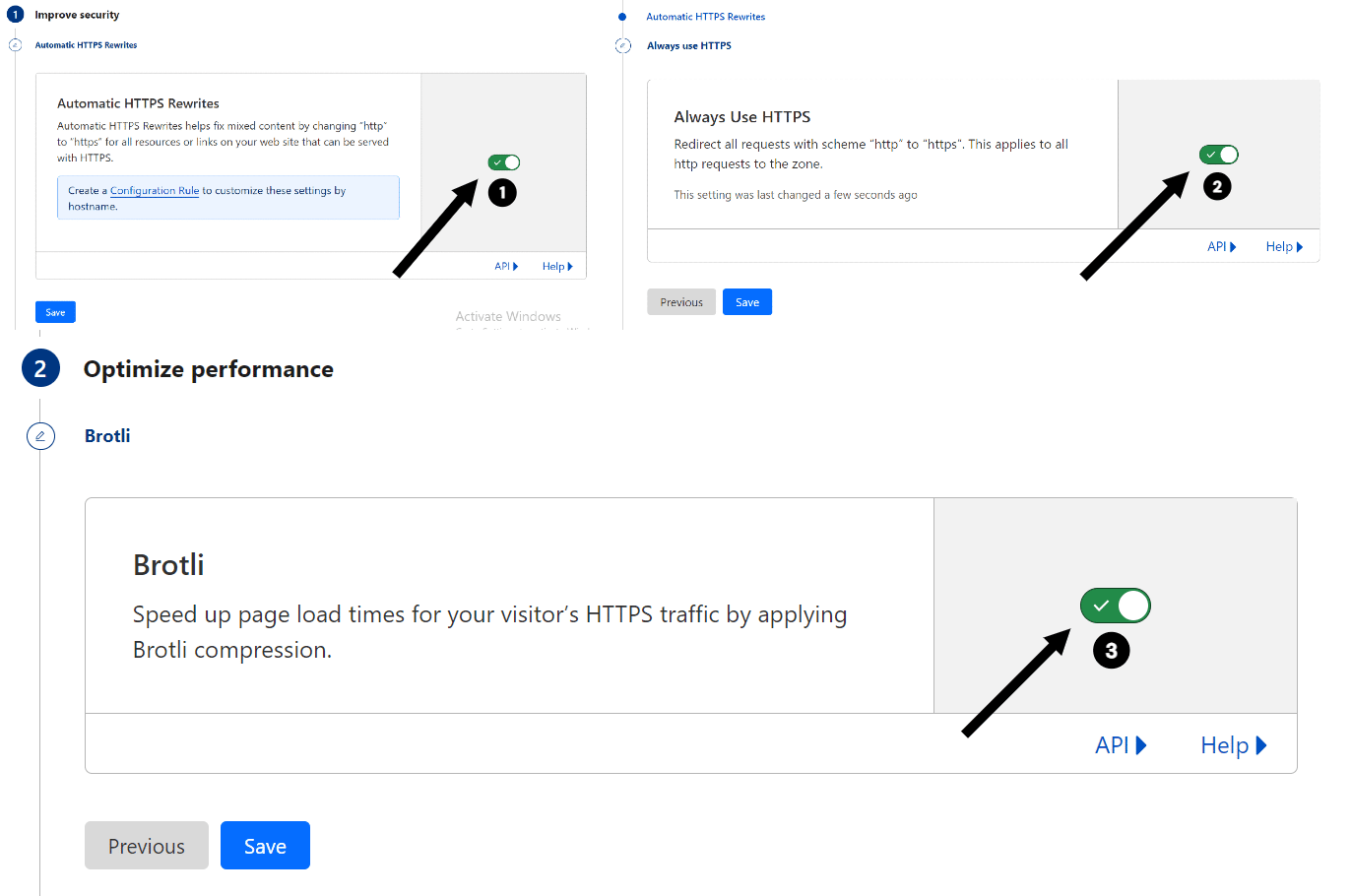
The below steps are optional which can be enabled for better perfomance and security
6

Navigate to your Typeflo dashboard and click on "Settings"
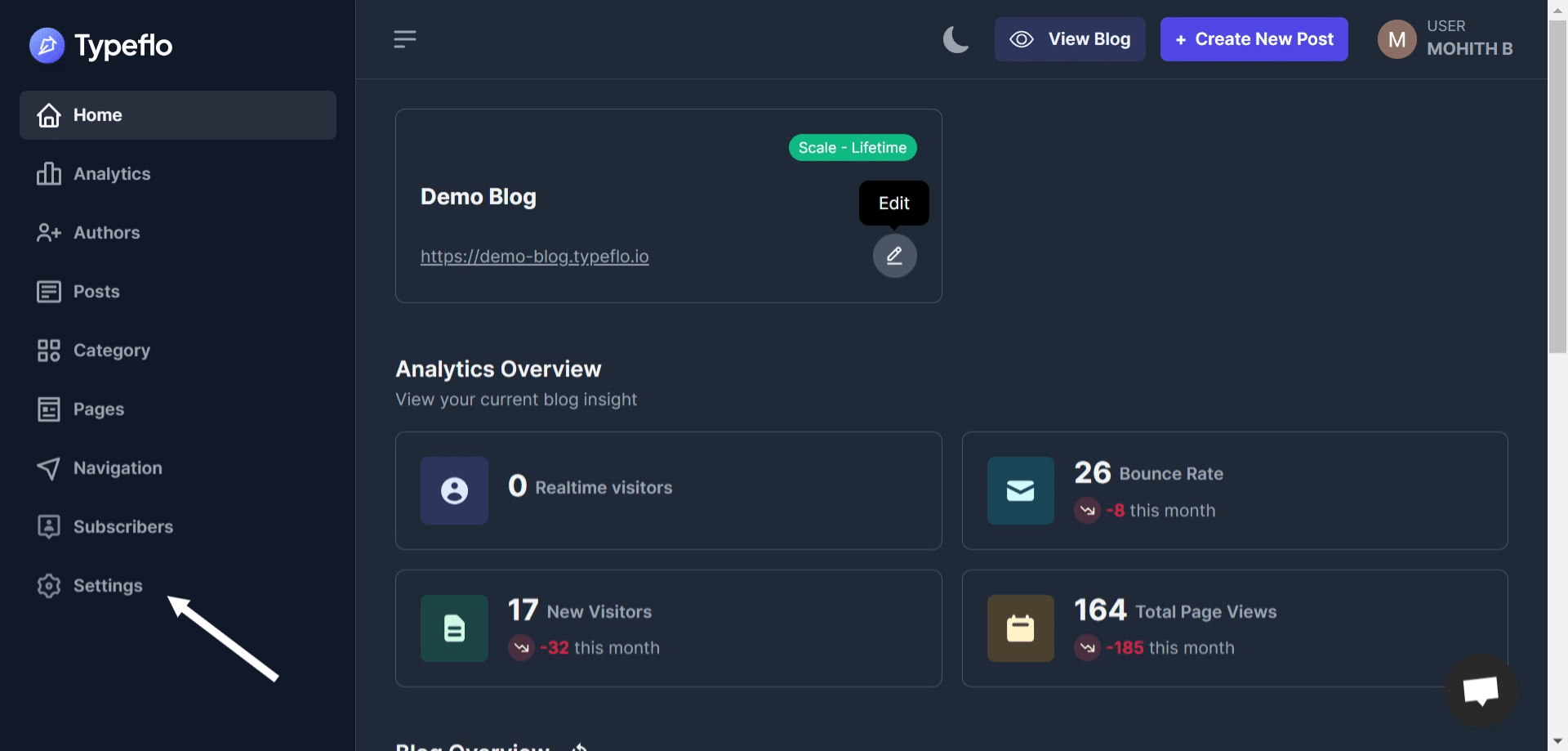
Navigate to your Typeflo dashboard and click on **"Settings"**
7

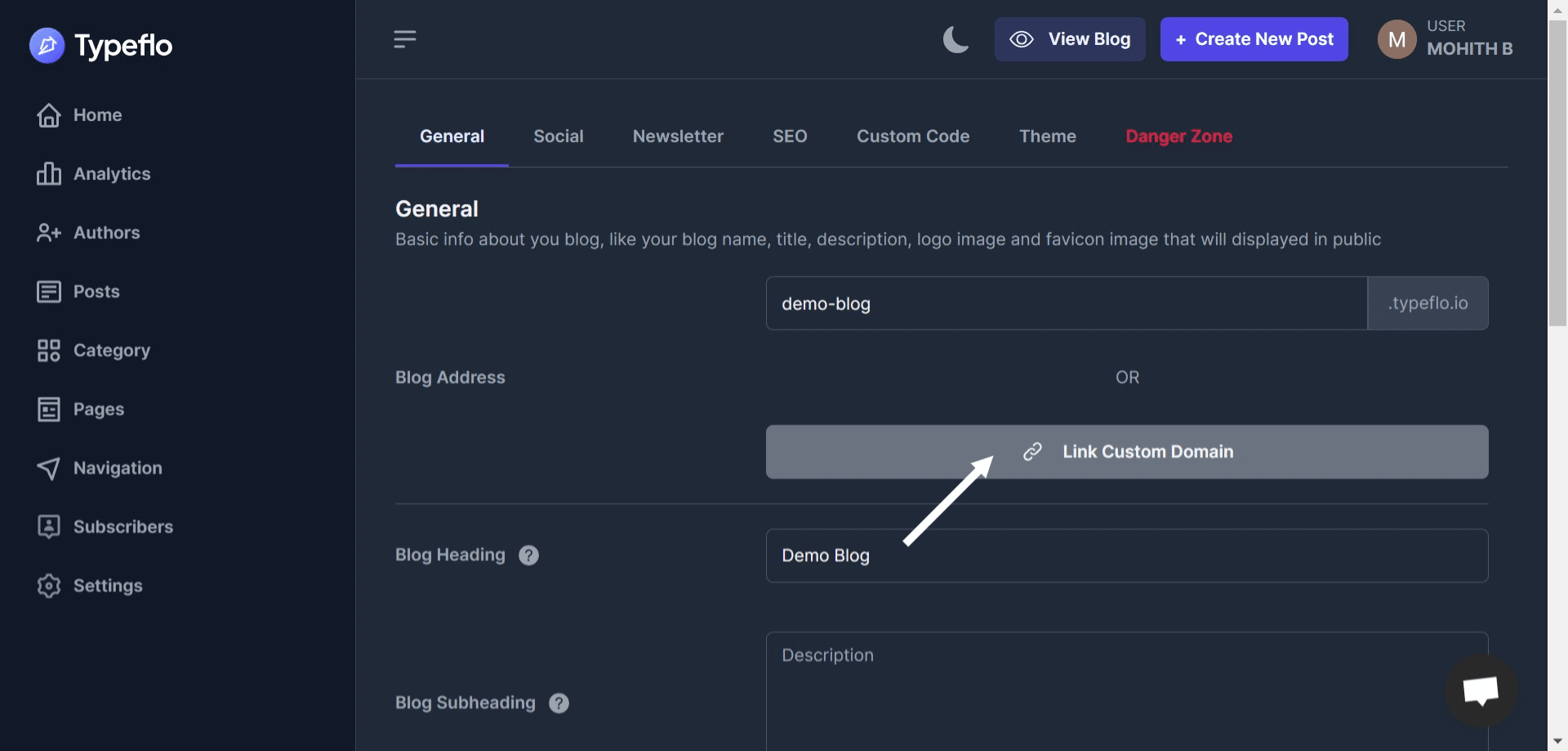
Click on "Link Custom Domain" Button

Click on **"Link Custom Domain"** Button
8

Select the type as "Subfolder" and enter the complete URL with the subfolder slug.
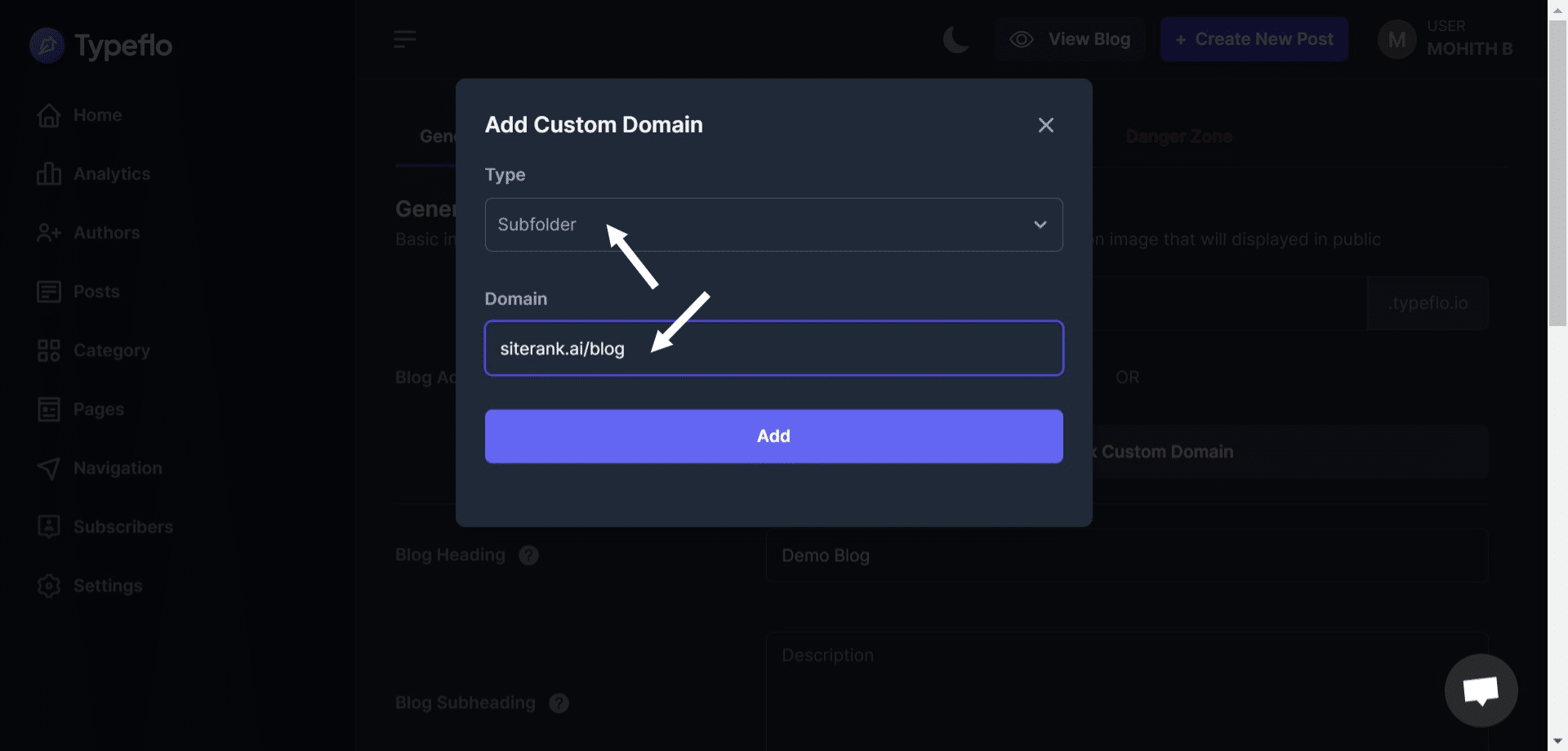
Select the type as "Subfolder" and enter the complete URL with the subfolder slug.
9

Choose the domain which you linked on your Typeflo Dashboard
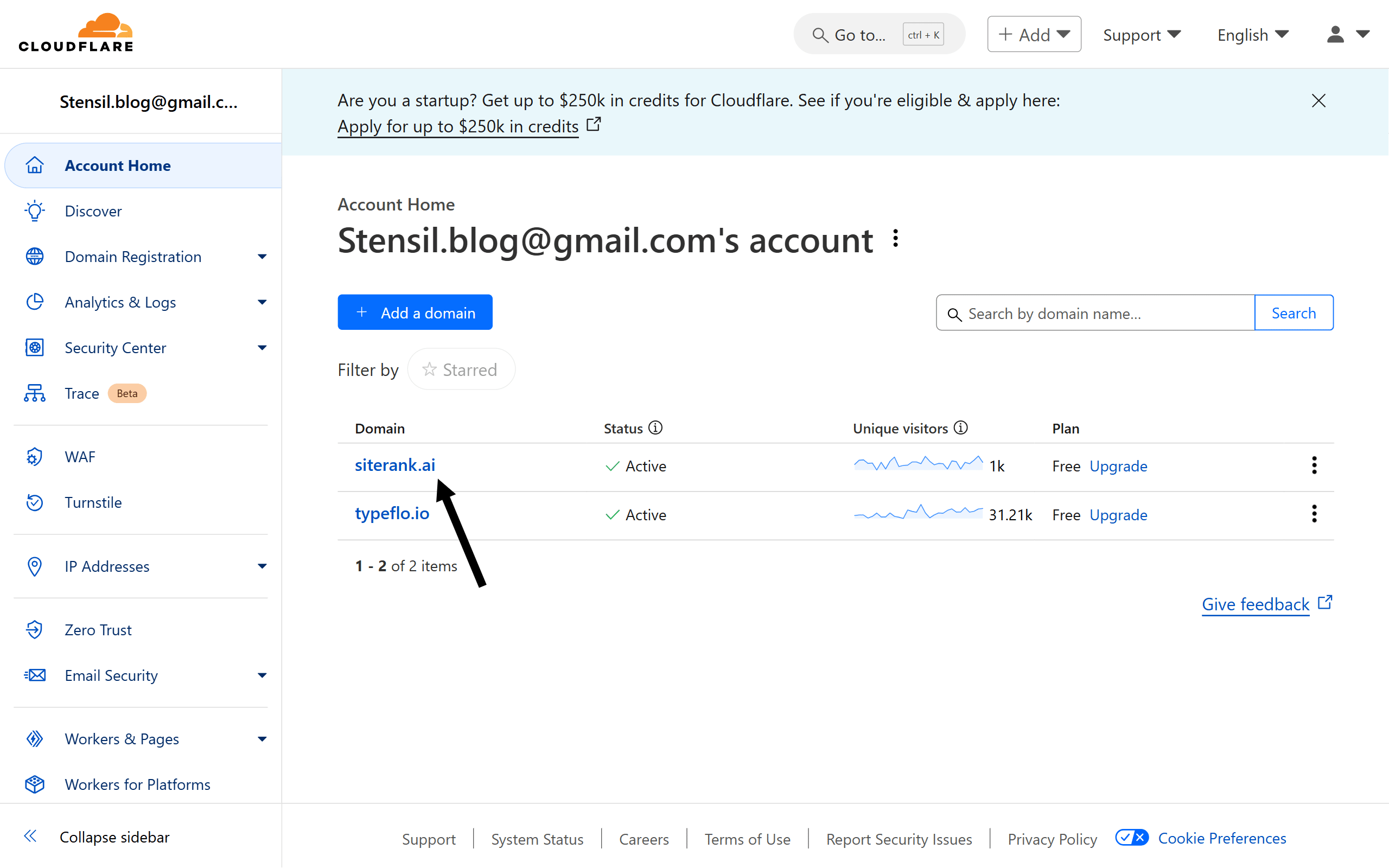
Choose the domain which you linked on your Typeflo Dashboard
10

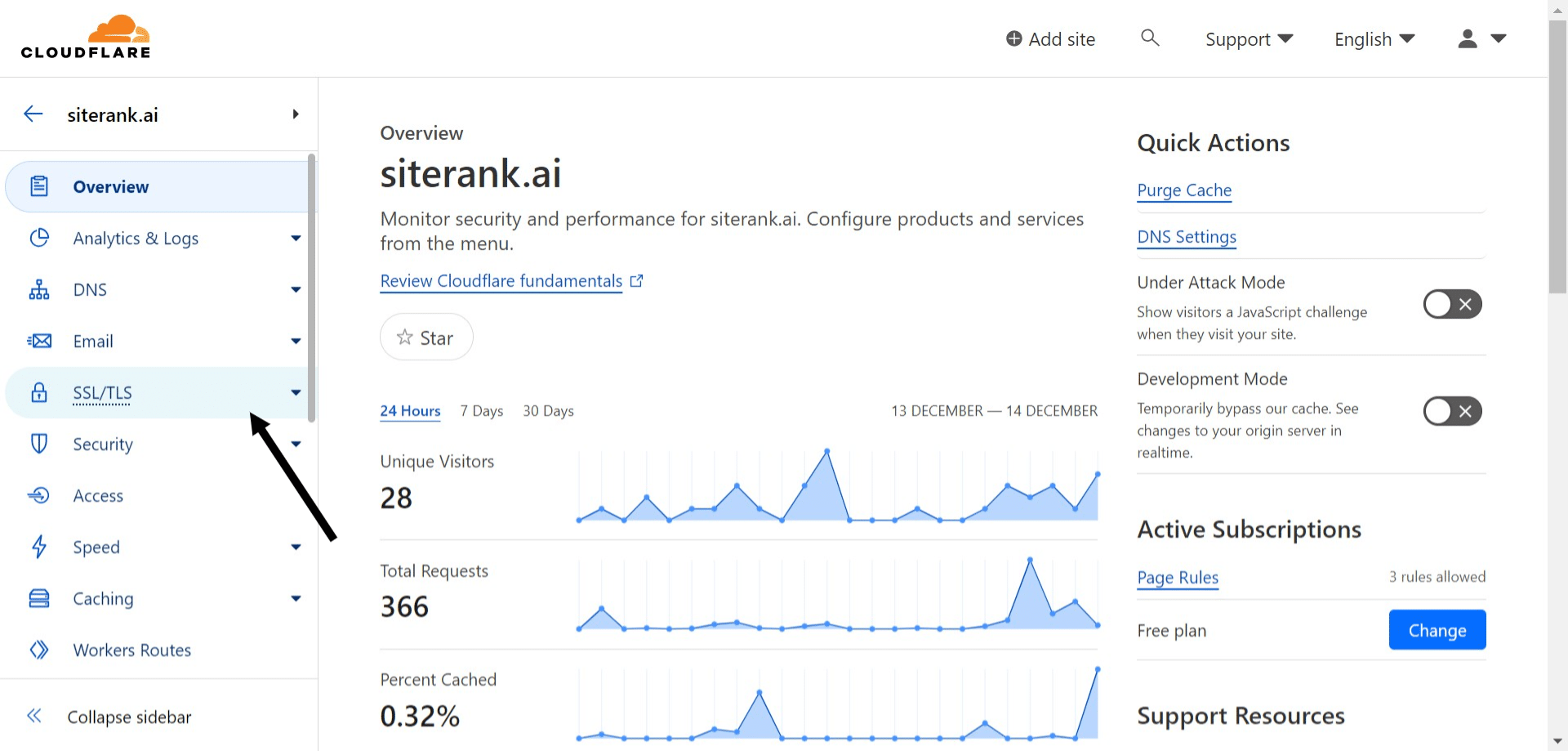
Click on "SSL/TLS"

Click on **"SSL/TLS"**
11

Click on "Overview" and then click on "Configure"
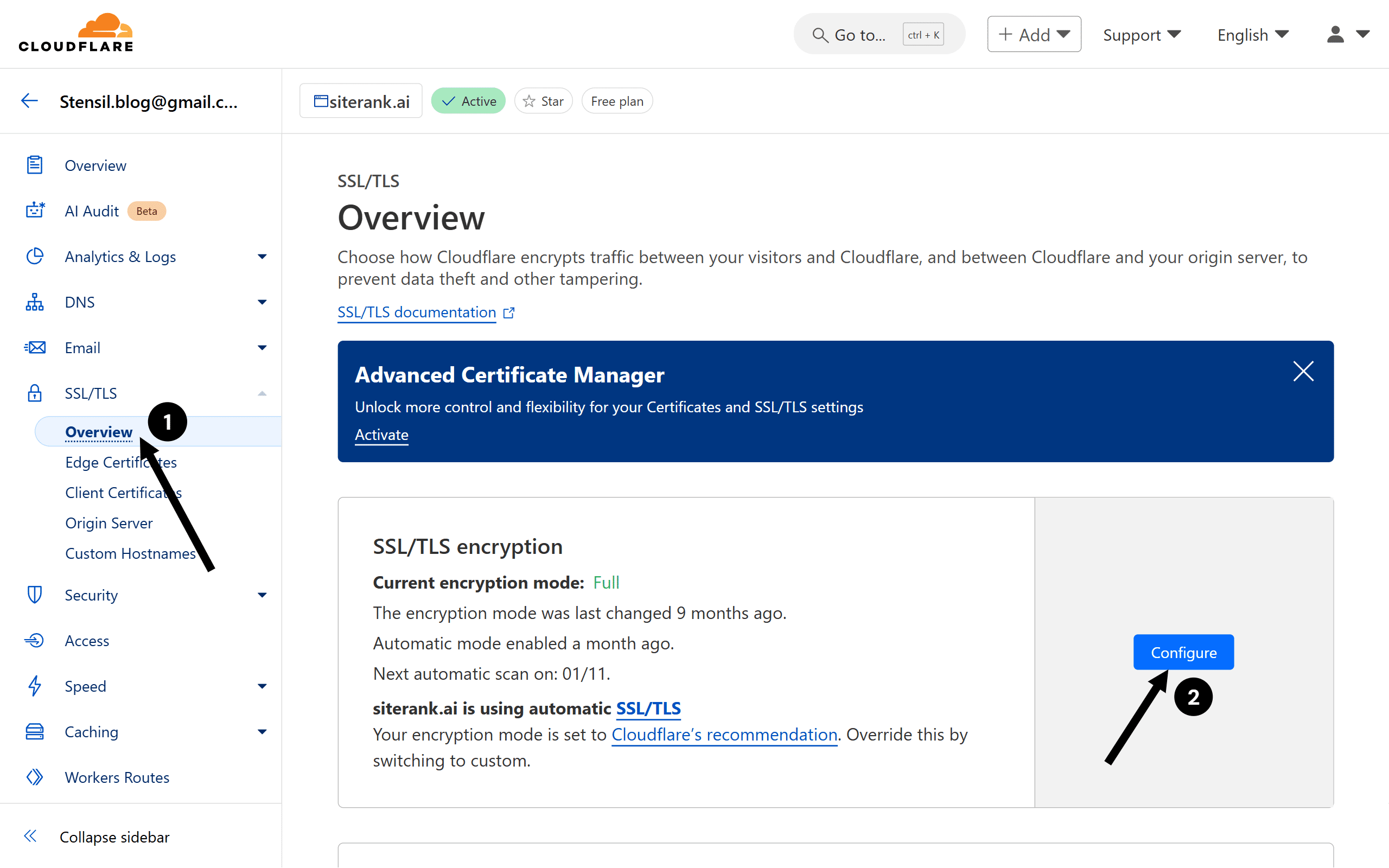
Click on **"Overview"** and then click on **"Configure"**
12

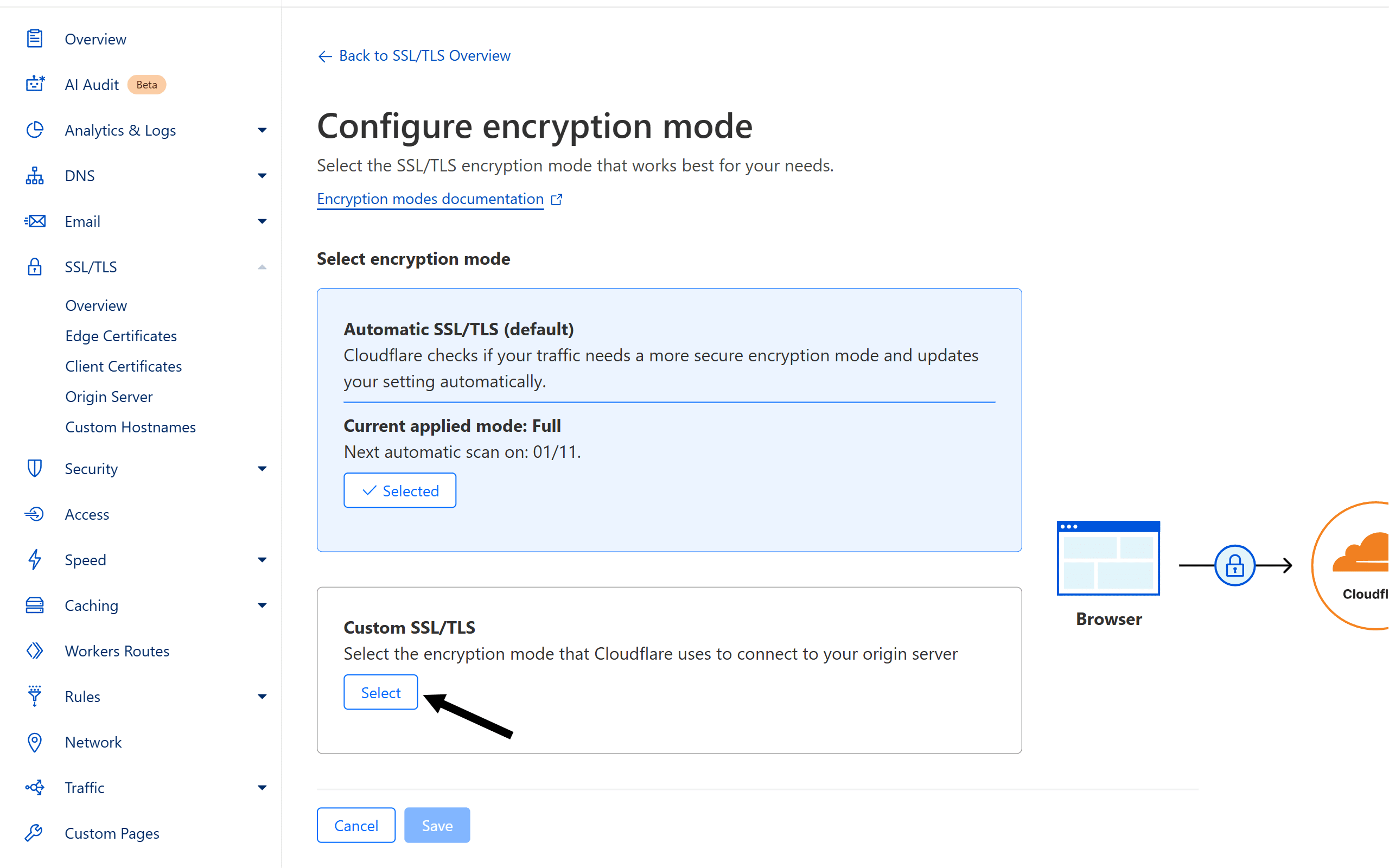
Under Custom SSL/TLS, click "Select"

Under *Custom SSL/TLS*, click **"Select"**
13

Now select the SSL/TLS encryption mode from "Flexible" to "Full" and click on "Save"
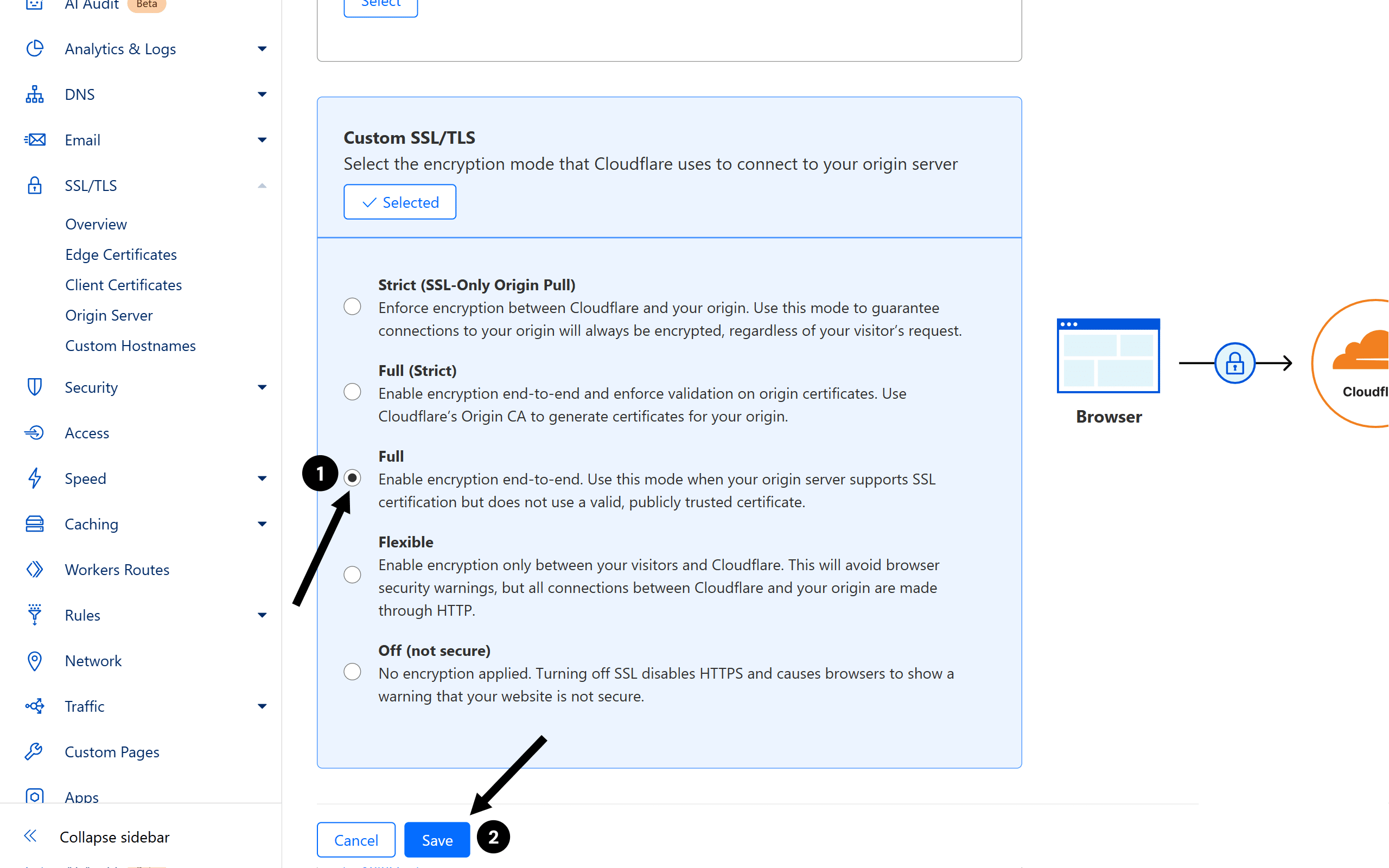
Now select the SSL/TLS encryption mode from **"Flexible"** to **"Full"** and click on **"Save"**
14

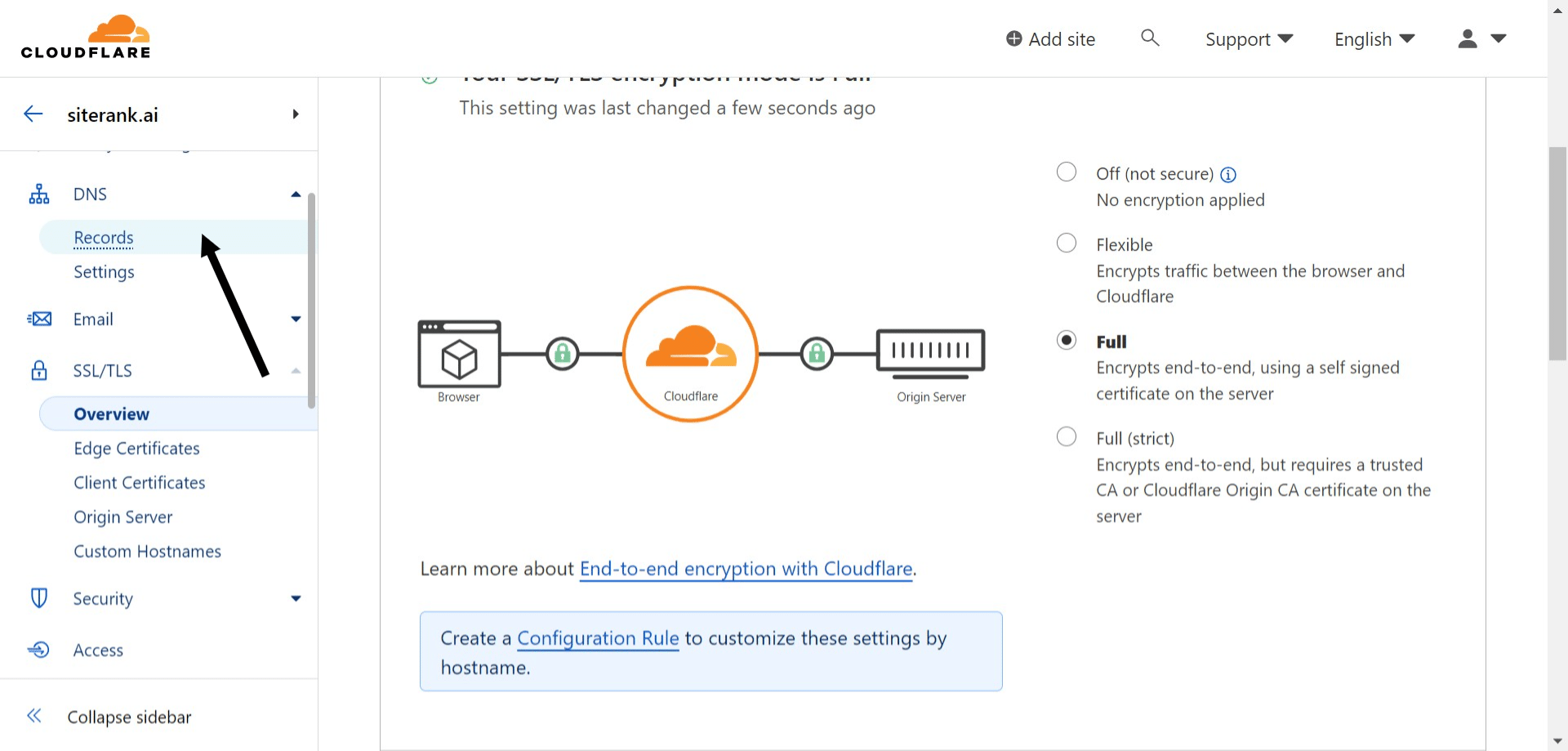
Next, click on "Records" under "DNS"

Next, click on **"Records"** under **"DNS"**
15

Find the "A" record with "Name" as your domain address & Click on "Edit"
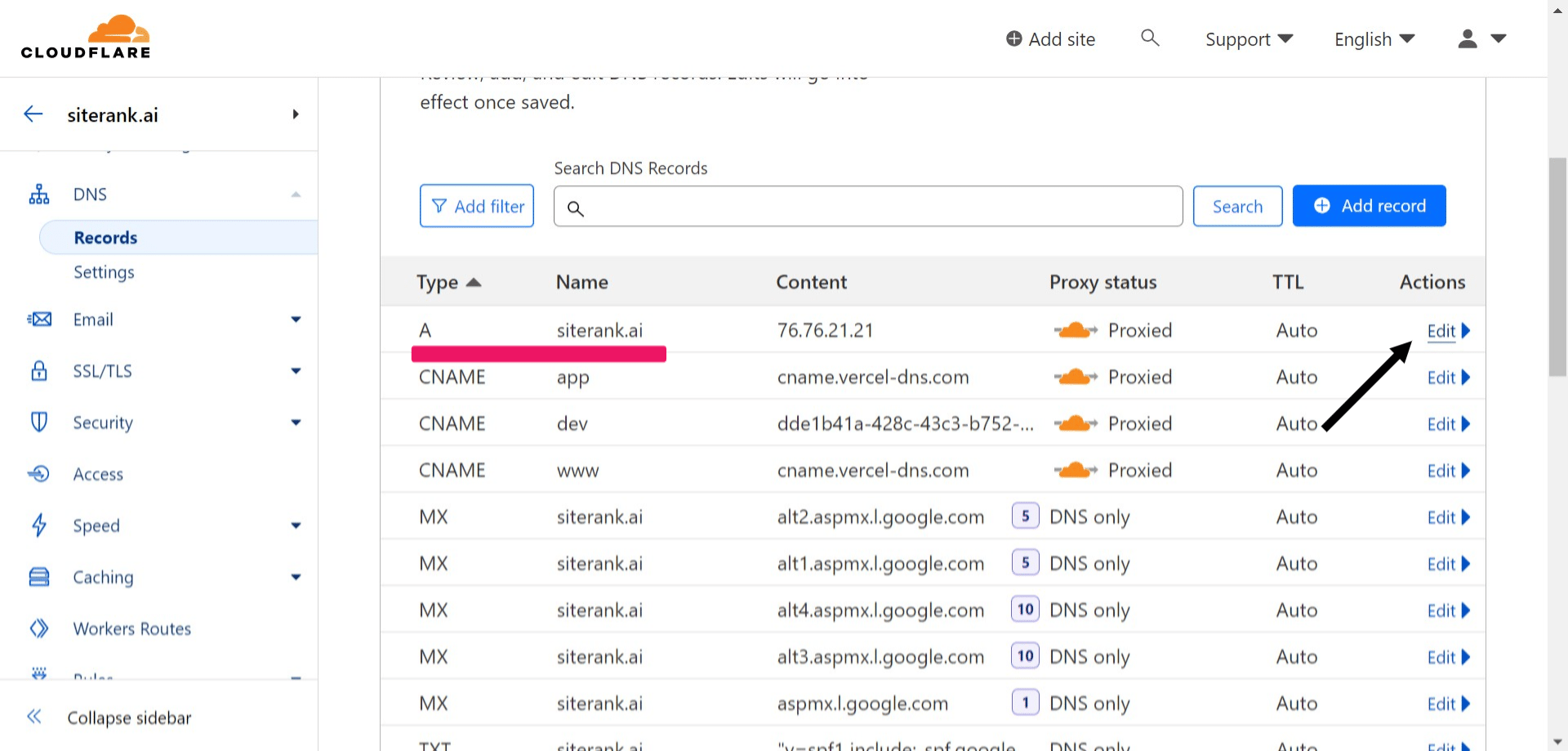
Find the **"A"** record with **"Name"** as your domain address & Click on **"Edit"**
16

Toggle the Proxy status to "On" and click "Save"
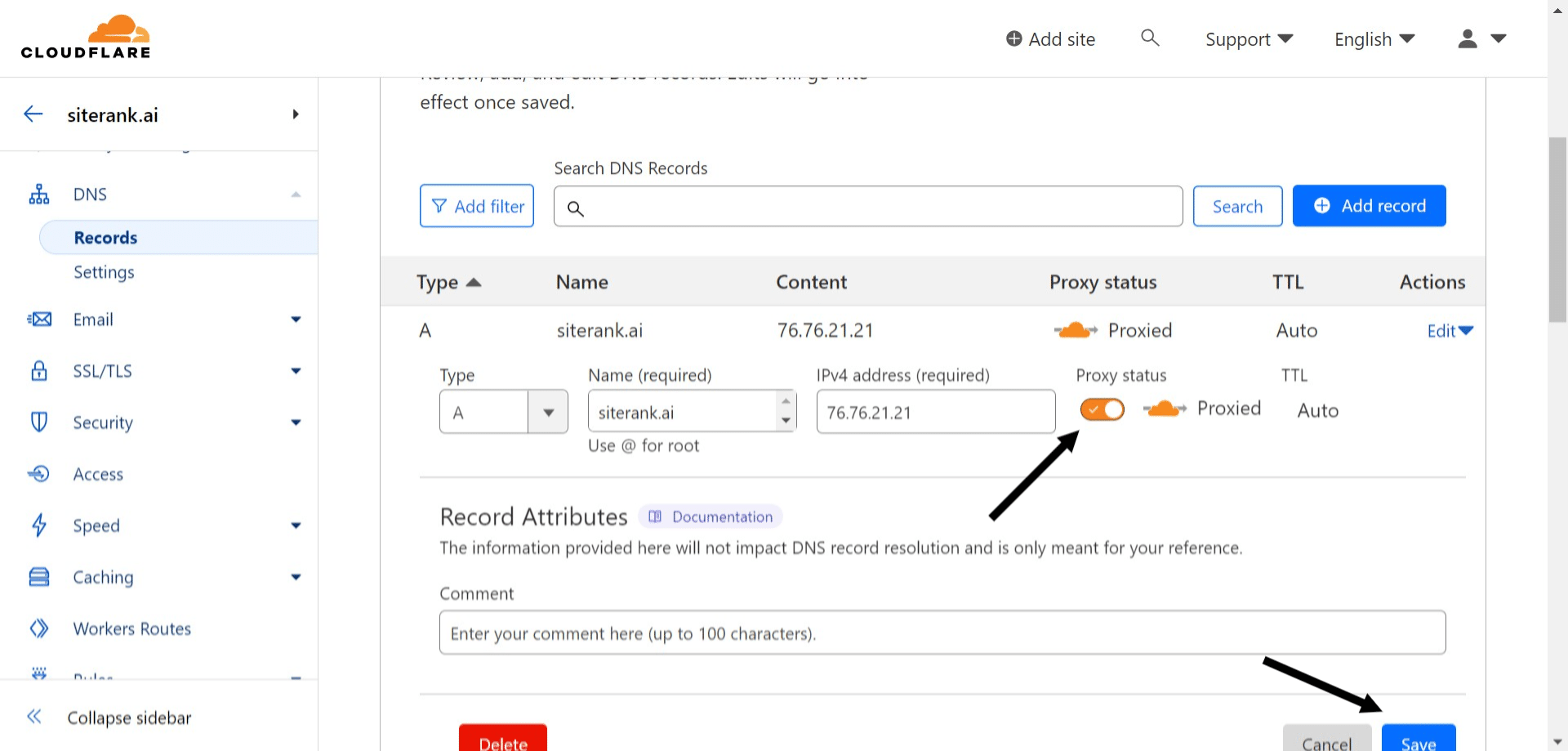
Toggle the **Proxy status** to "On" and click **"Save"**
17

Click on "Workers Routes" and then click on "Manage Workers"
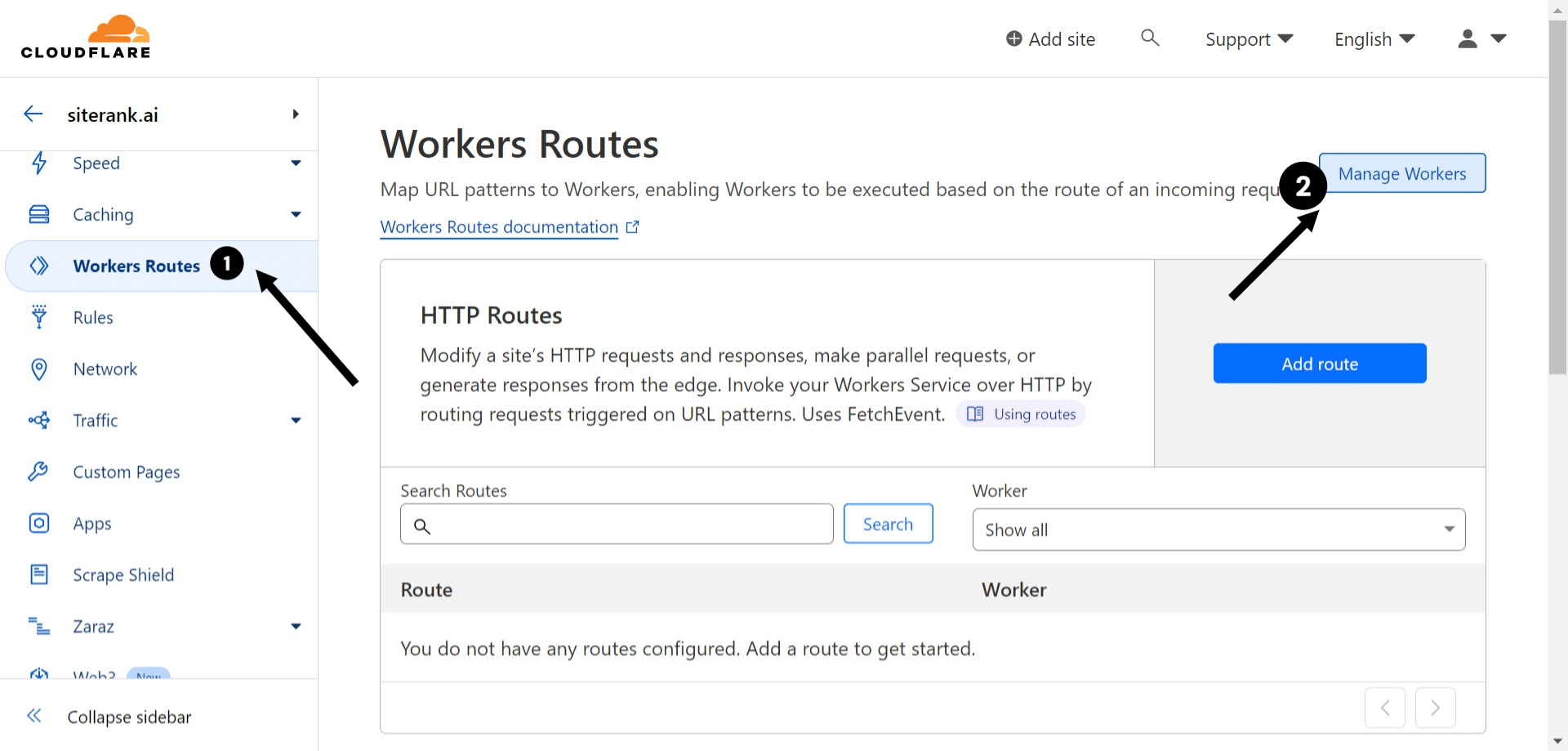
Click on **"Workers Routes"** and then click on **"Manage Workers"**
18

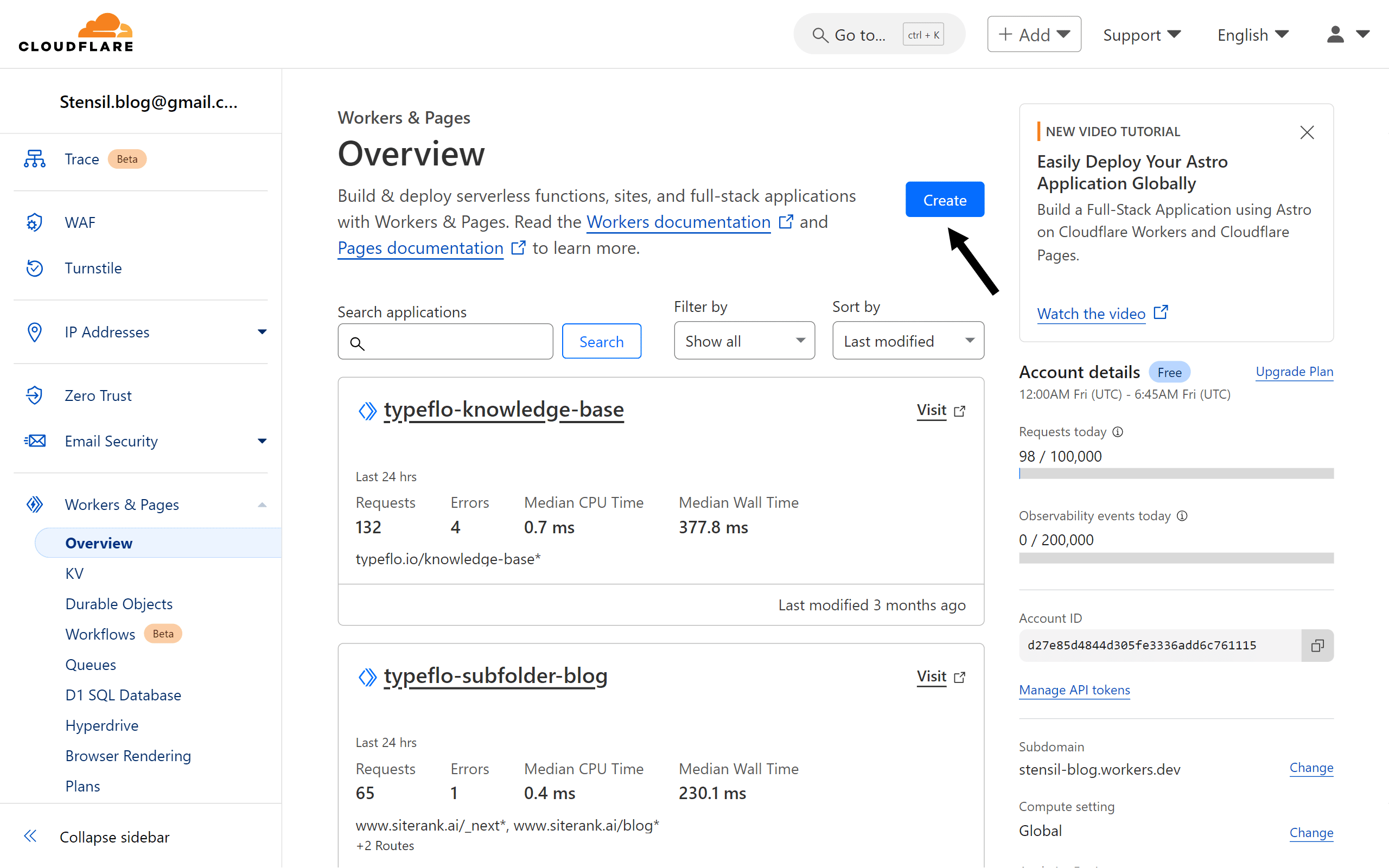
Click on "Create"

Click on **"Create"**
19

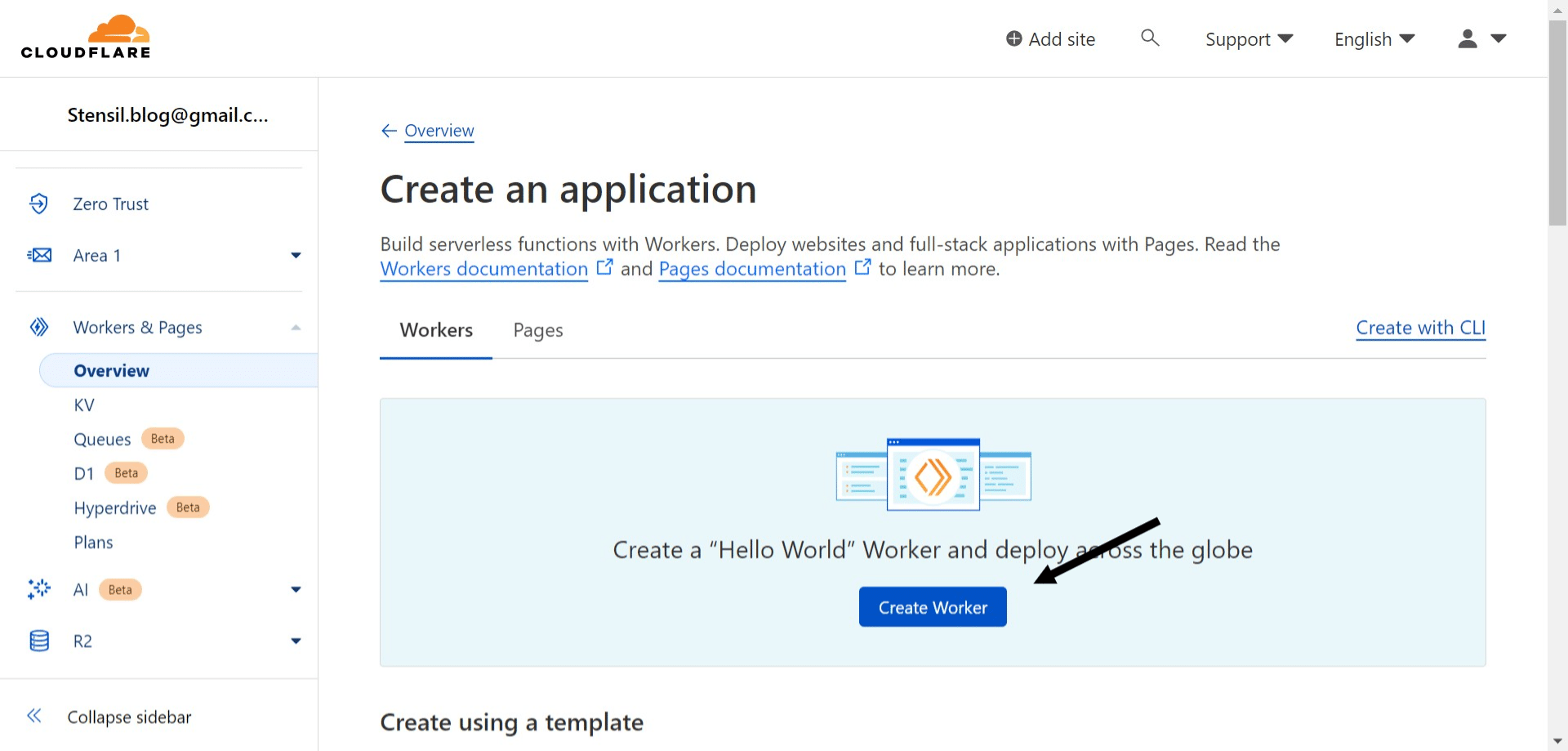
Click on "Create Worker"

Click on **"Create Worker"**
20

Provide the name of your choice (or use the default one) and then click on "Deploy" on the bottom right of your screen.
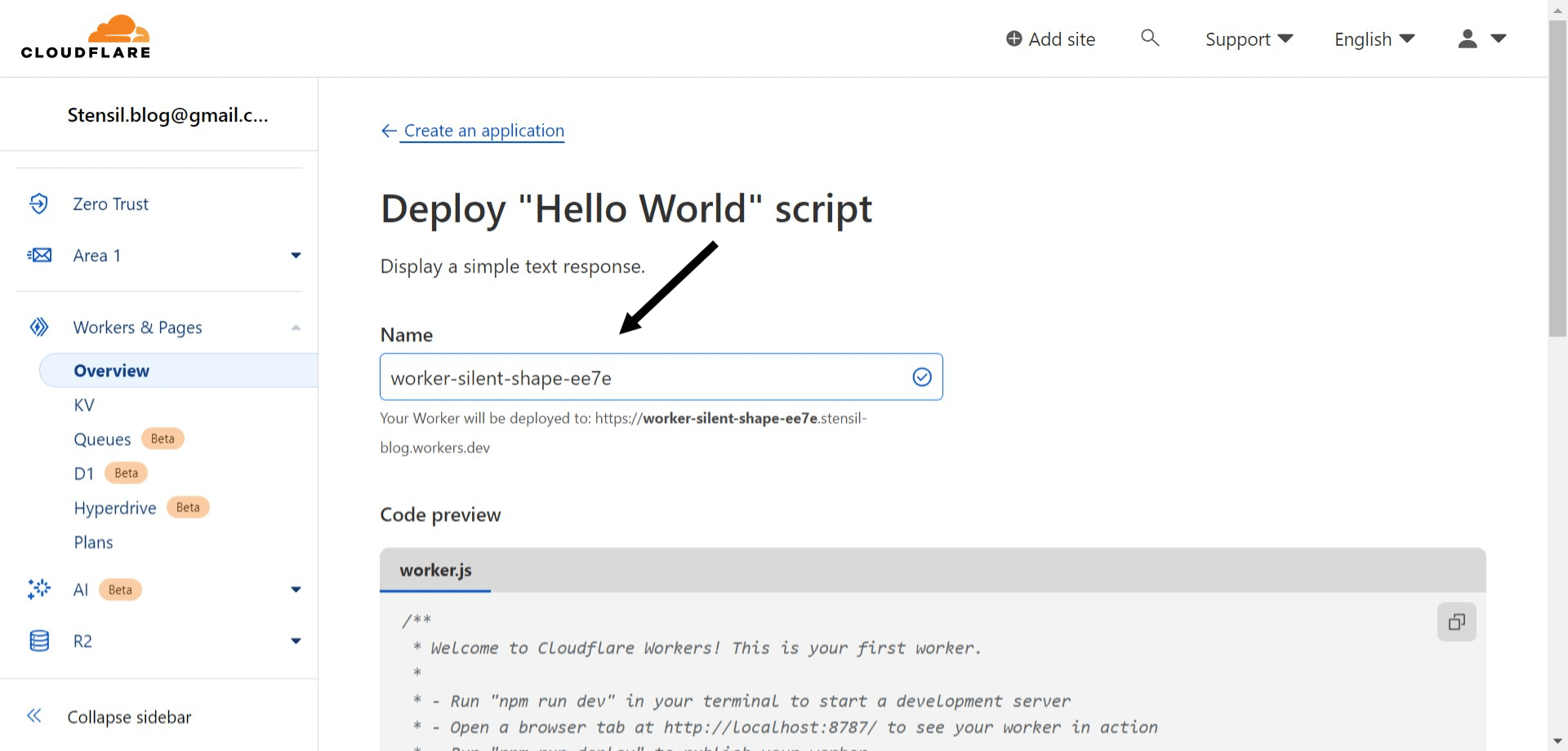
Provide the name of your choice (or use the default one) and then click on **"Deploy"** on the bottom right of your screen.
21

Once deployed. You will get the below screen. Click on "Edit code"
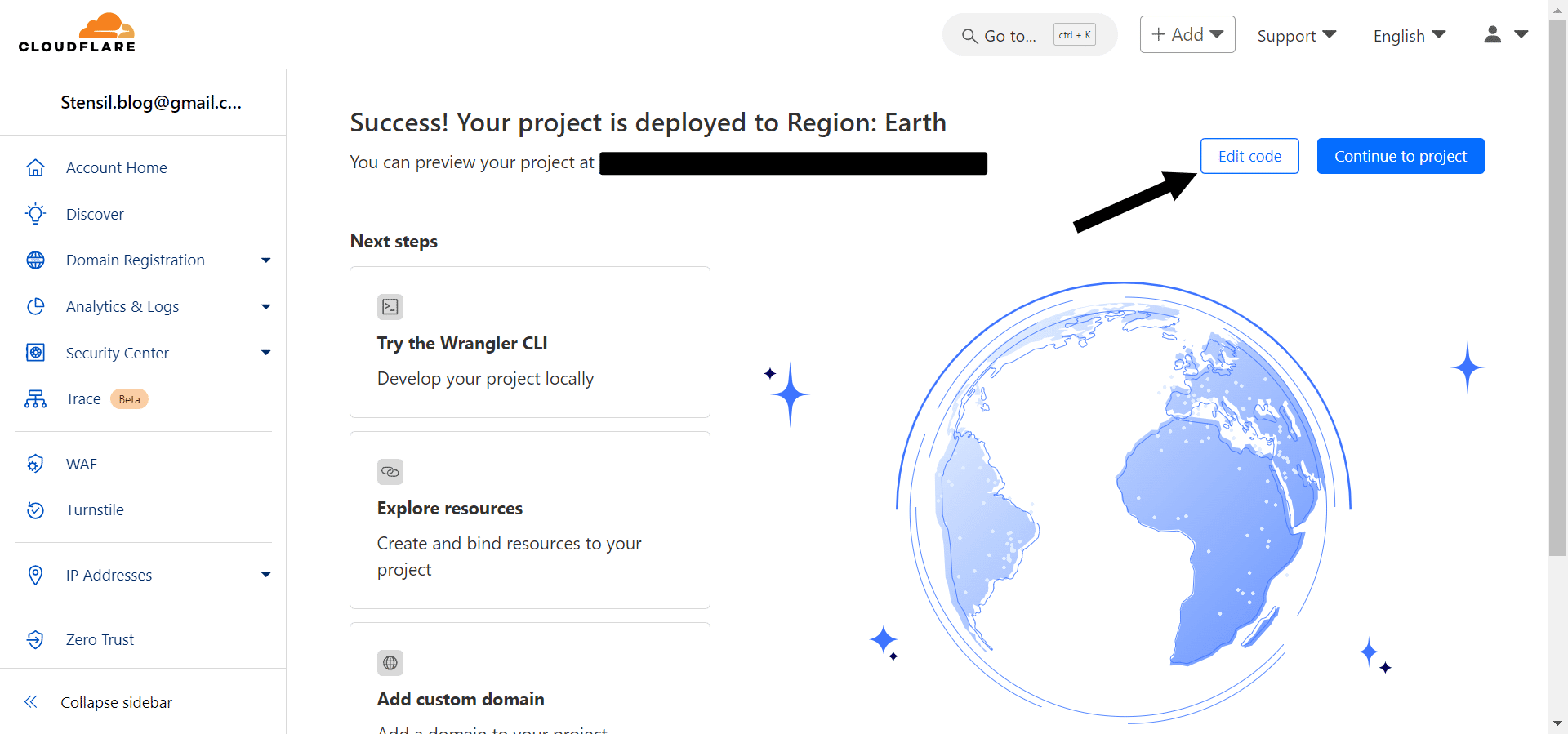
Once deployed. You will get the below screen. Click on **"Edit code"**
22

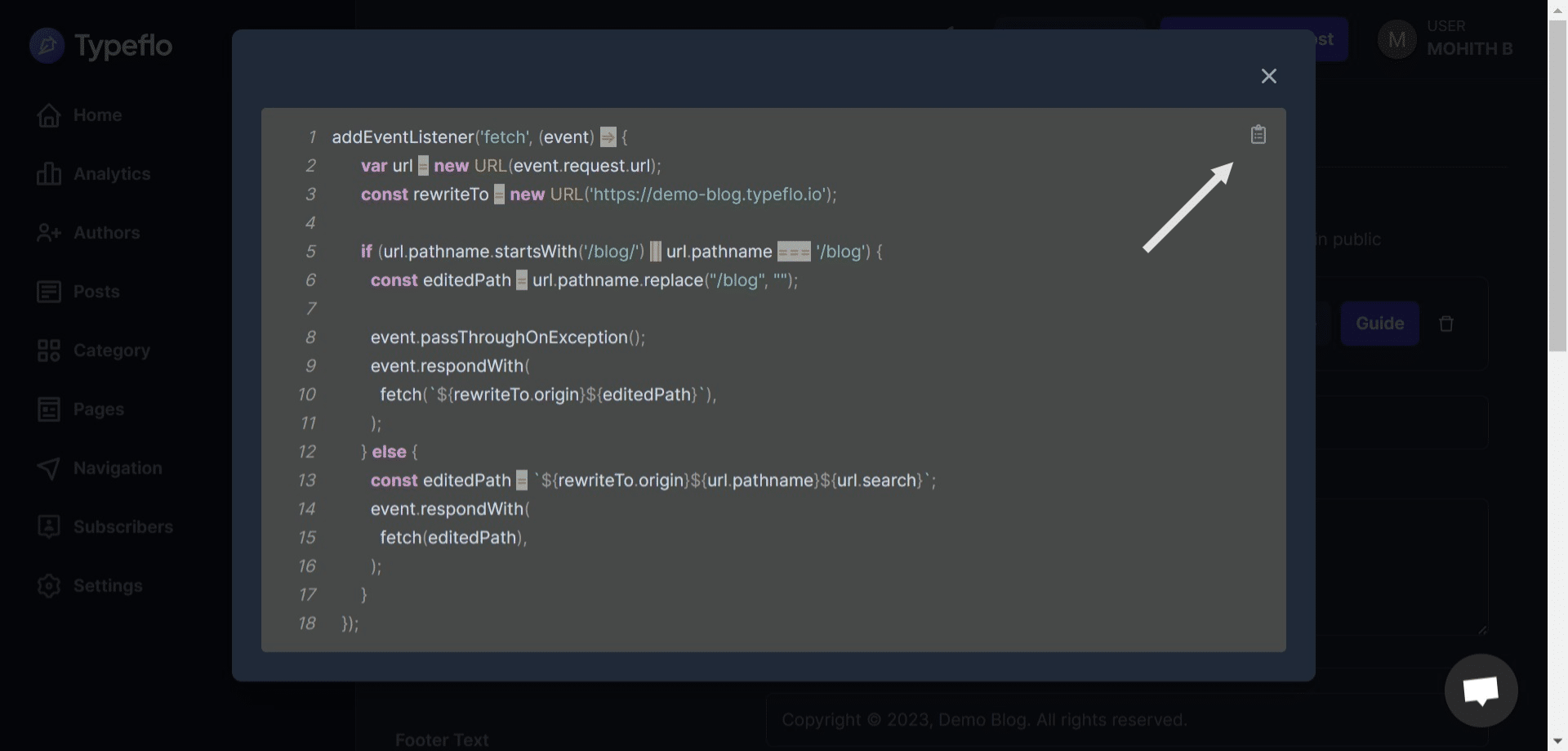
Go back to the Typeflo Dashboard, from the General Settings click on "Code"
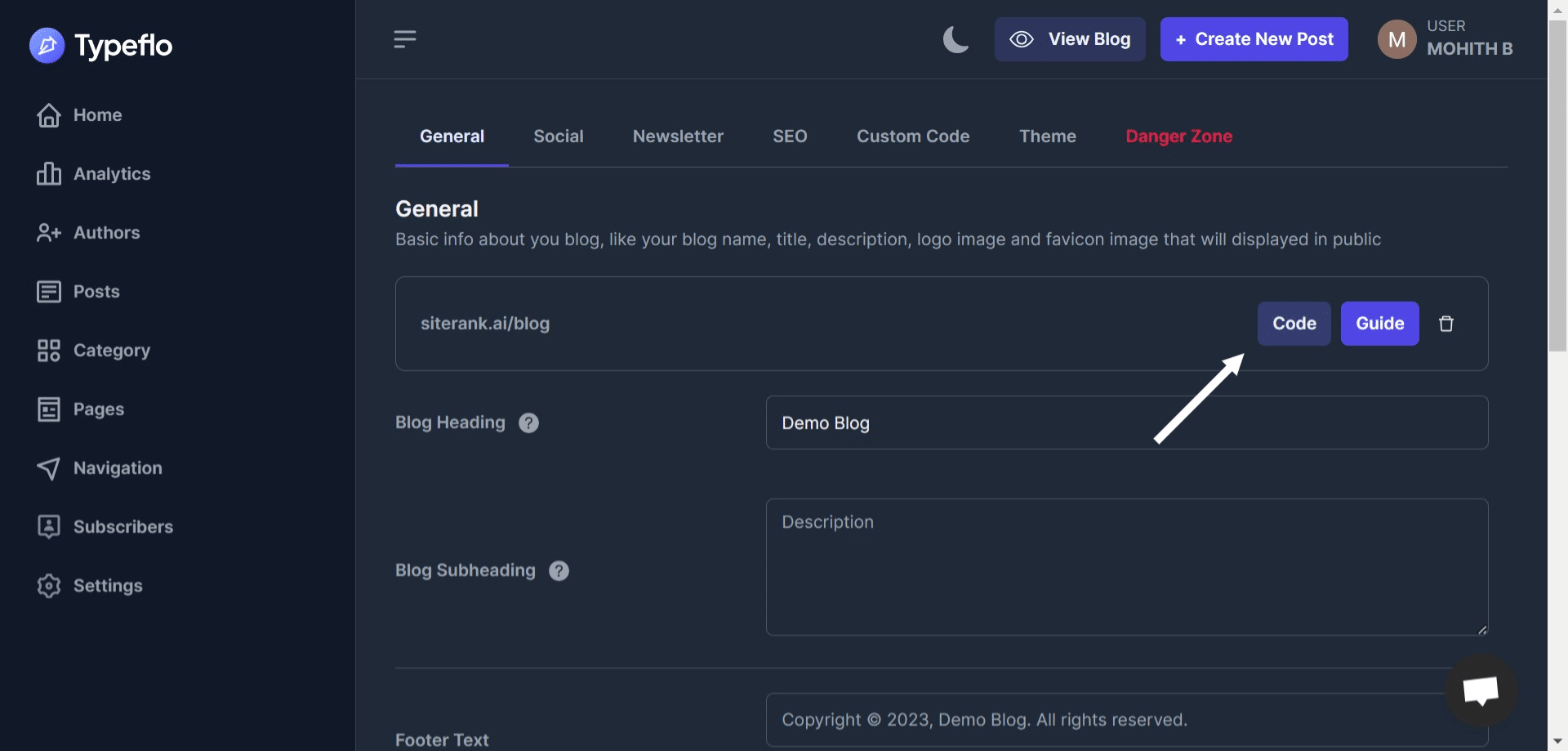
Go back to the Typeflo Dashboard, from the General Settings click on **"Code"**
23

Copy the displayed code

Copy the displayed code
24

Go back to Cloudflare. Remove all the existing code & paste the copied code from Typeflo Dashboard. Then click on "Deploy"
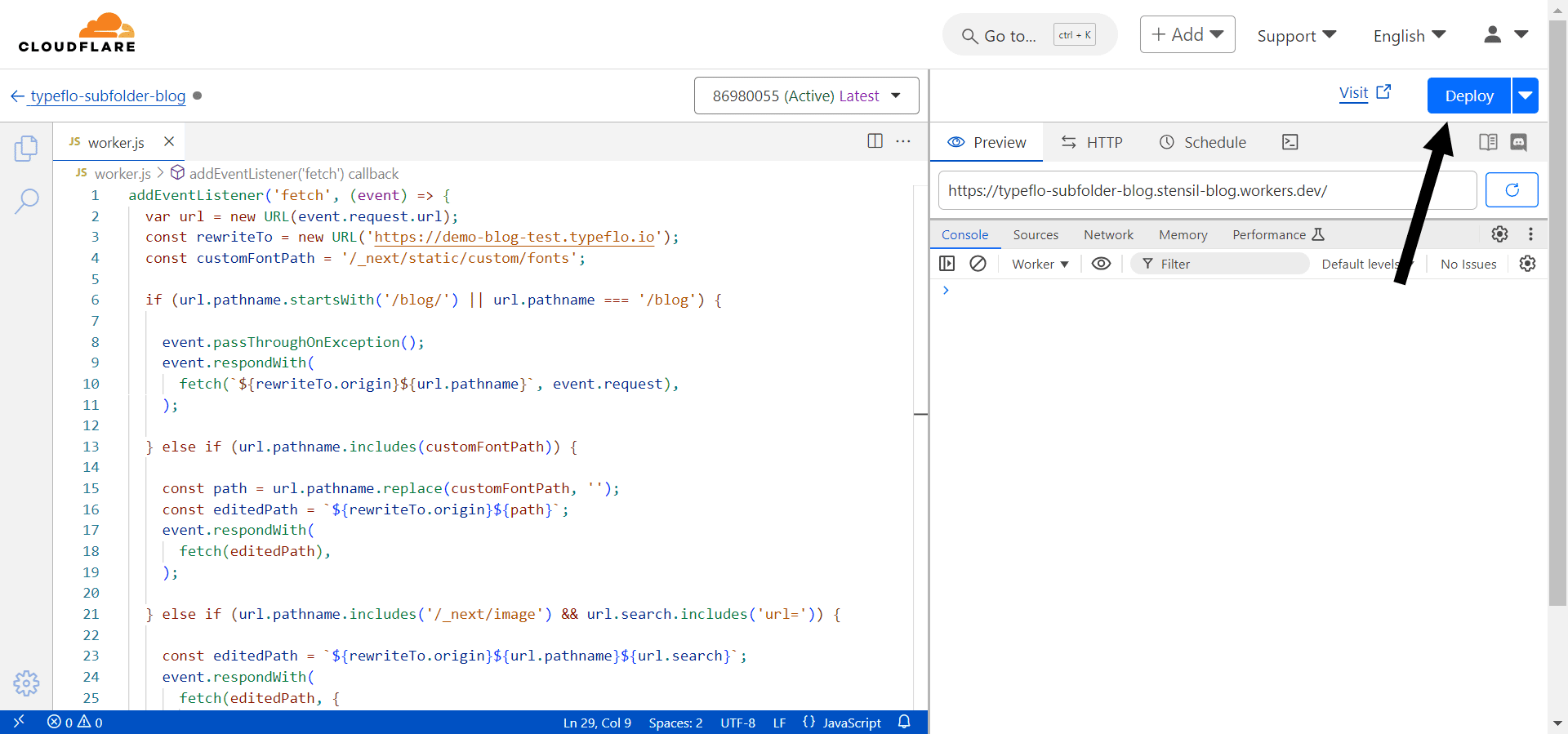
Go back to Cloudflare. Remove all the existing code & paste the copied code from Typeflo Dashboard. Then click on **"Deploy"**
25

Go back to the Workers home page and click on "Settings"
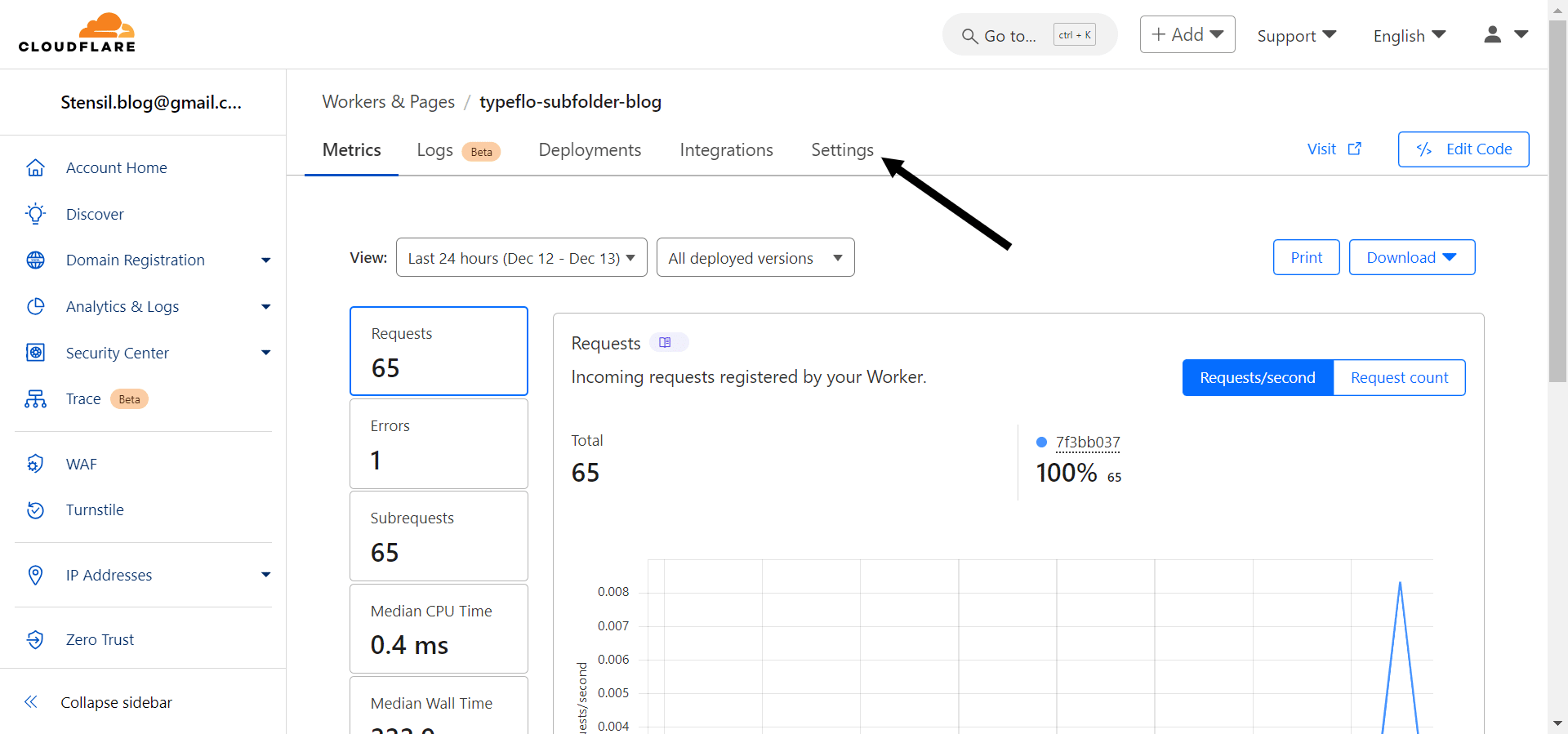
Go back to the Workers home page and click on **"Settings"**
26

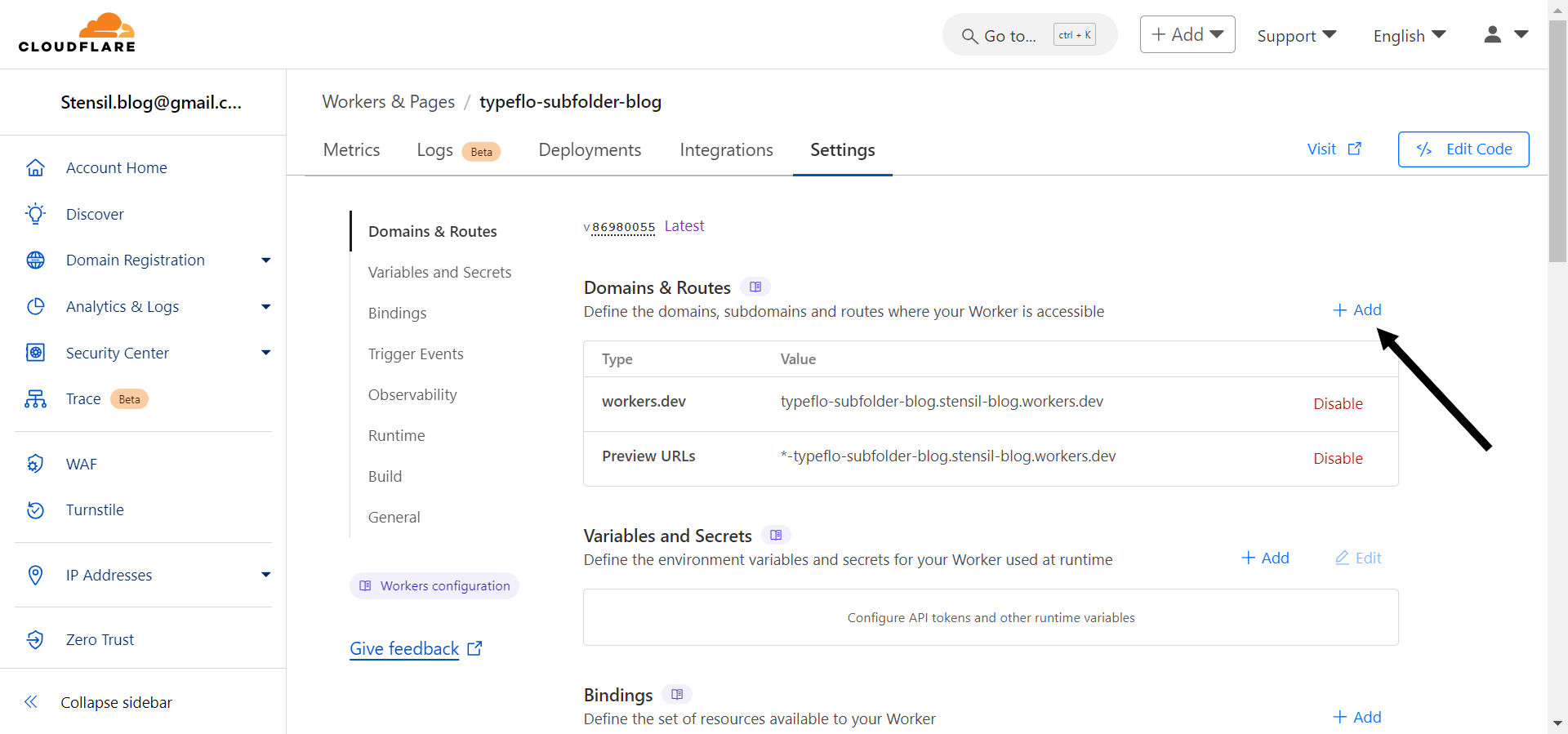
In Domains & Routes, click "+ Add"

In *Domains & Routes*, click **"+ Add"**
27

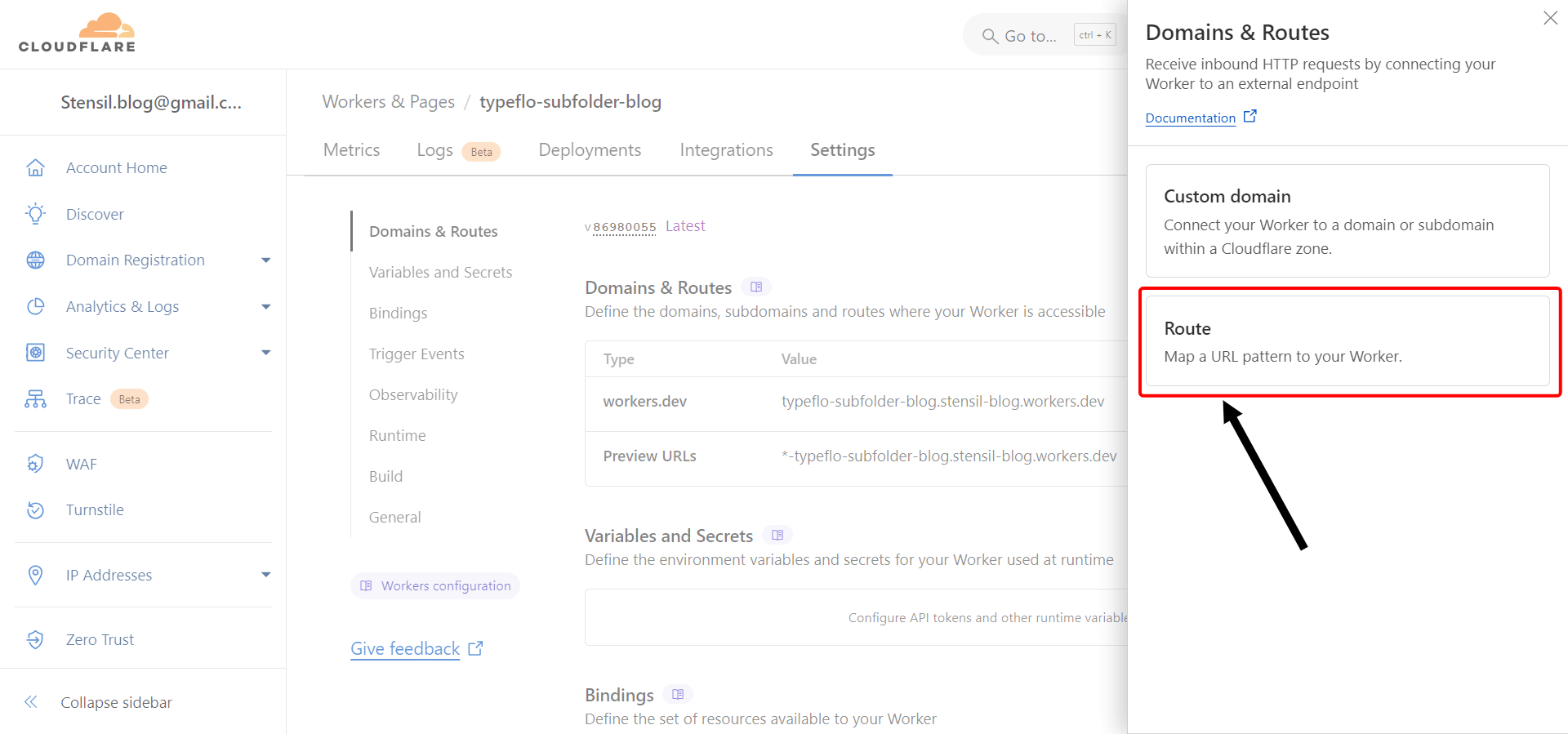
Select "Route" from the option

Select **"Route"** from the option
28
  1. Select the Zone to your linked domain address with Typeflo

  2. Add the Route as yourdomain.com/subfolder*. yourdomain.com is your website's domain URL. Please do not enter "https://" in the URL. If your main website's path contains www, enter the route as www.yourdomain.com/subfolder*

  3. Then select the Failure mode to "Fail closed (block)"
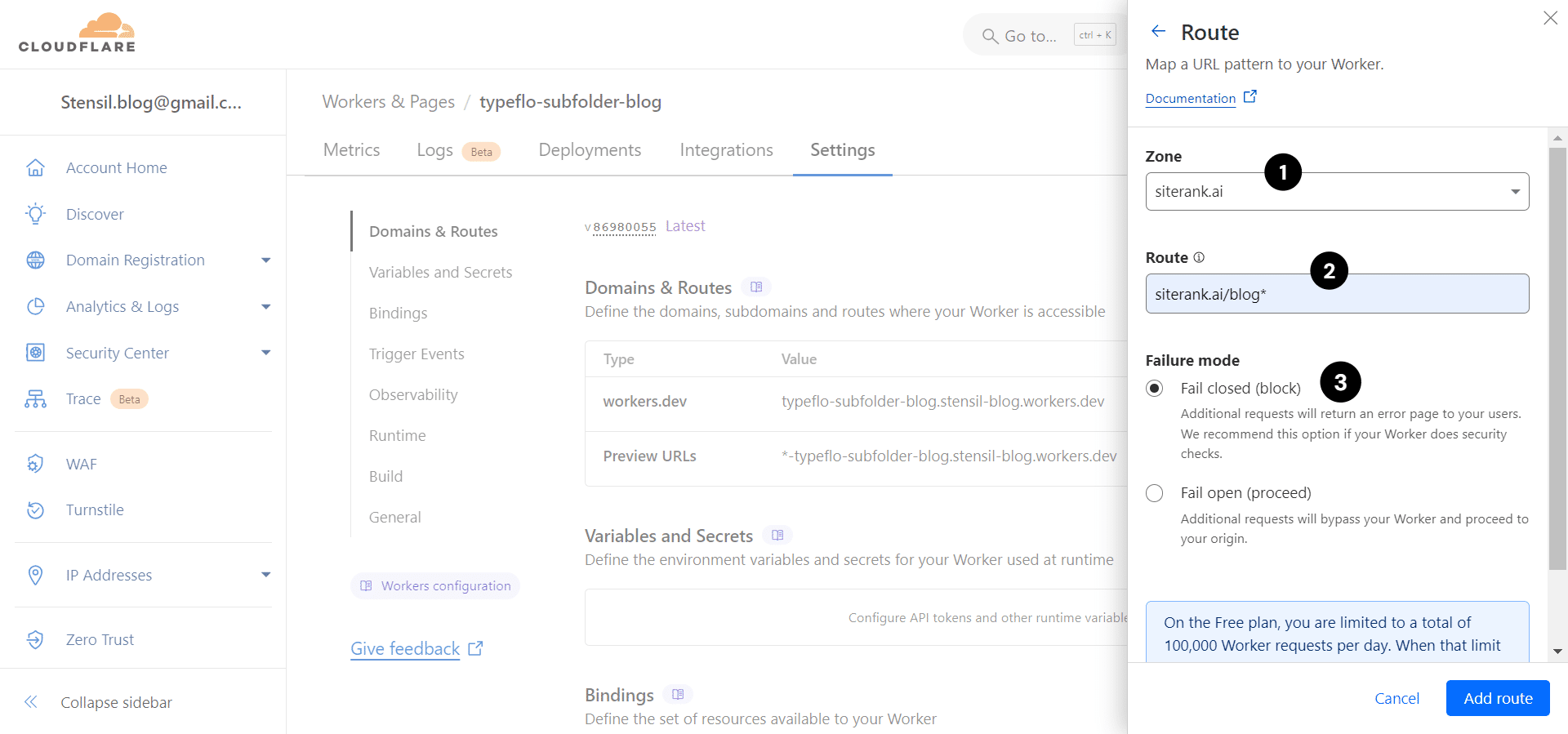
1. Select the *Zone* to your linked domain address with Typeflo

2. Add the *Route* as **yourdomain.com/subfolder***. yourdomain.com is your website's domain URL. Please do not enter "https://" in the URL. If your main website's path contains www, enter the route as **www.yourdomain.com/subfolder***

3. Then select the *Failure mode* to **"Fail closed (block)"**
29

Once the 1st route is added, you need to add another Route for the CSS & Javascript of your Typeflo website to work. So, click on "+ Add" again and then select "Route" from the option
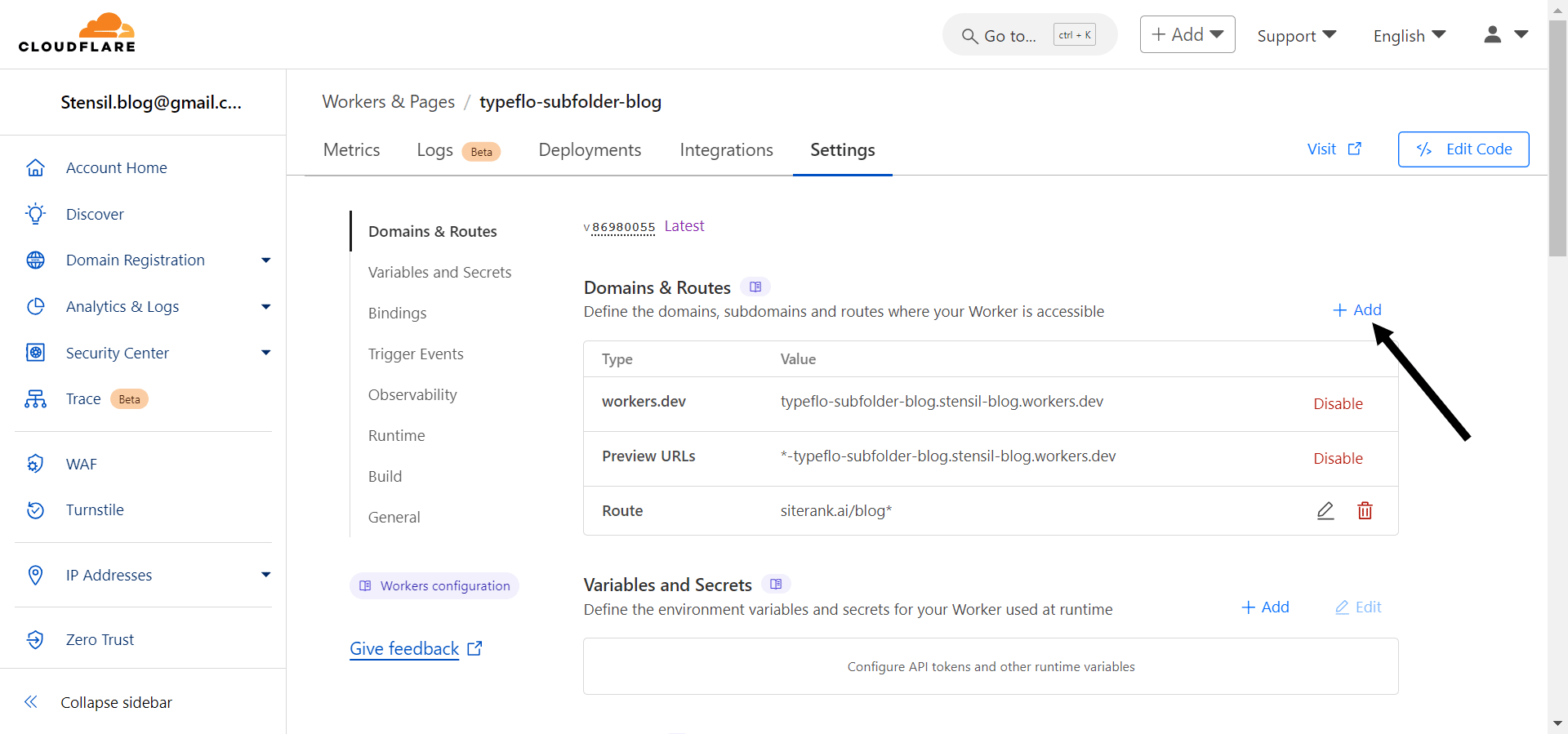
Once the 1st route is added, you need to add another Route for the CSS & Javascript of your Typeflo website to work. So, click on **"+ Add"** again and then select **"Route"** from the option
30

Select the Zone to your linked domain address with Typeflo Now add the Route as yourdomain.com/_next*. yourdomain.com is your website's domain URL. Please do not enter "https://" in the URL. In case your main website's path starts with www, please enter the url as www.yourdomain.com/_next* And then select the Failure mode to "Fail closed (block)"
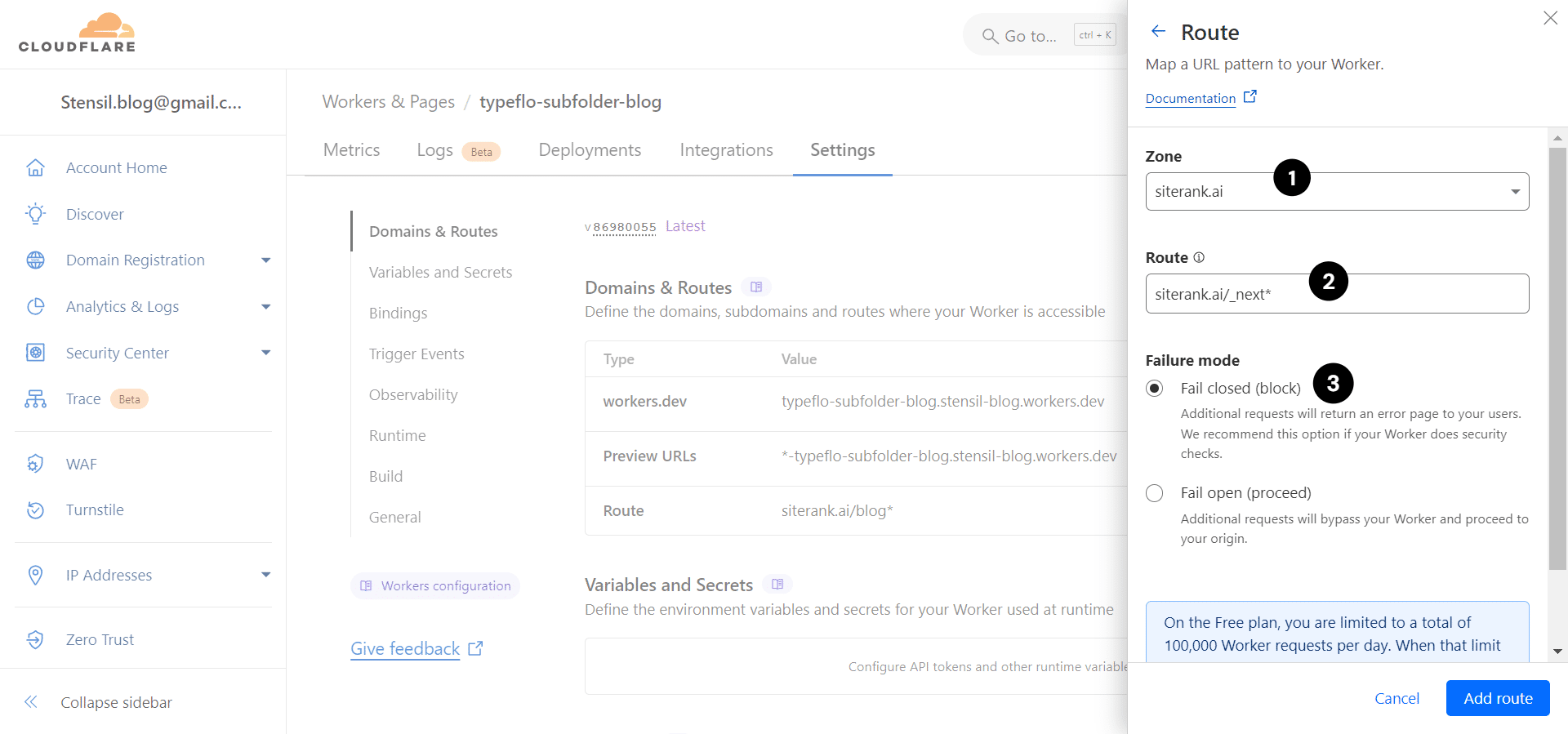
Select the *Zone* to your linked domain address with Typeflo
Now add the *Route* as **yourdomain.com/_next***. yourdomain.com is your website's domain URL. Please do not enter "https://" in the URL. In case your main website's path starts with www, please enter the url as **www.yourdomain.com/_next***
And then select the *Failure mode* to **"Fail closed (block)"**
31

Once added wait for 1-2 min & visit your domain with subfolder or you can simply go to Typeflo Dashboard & click "View Blog"
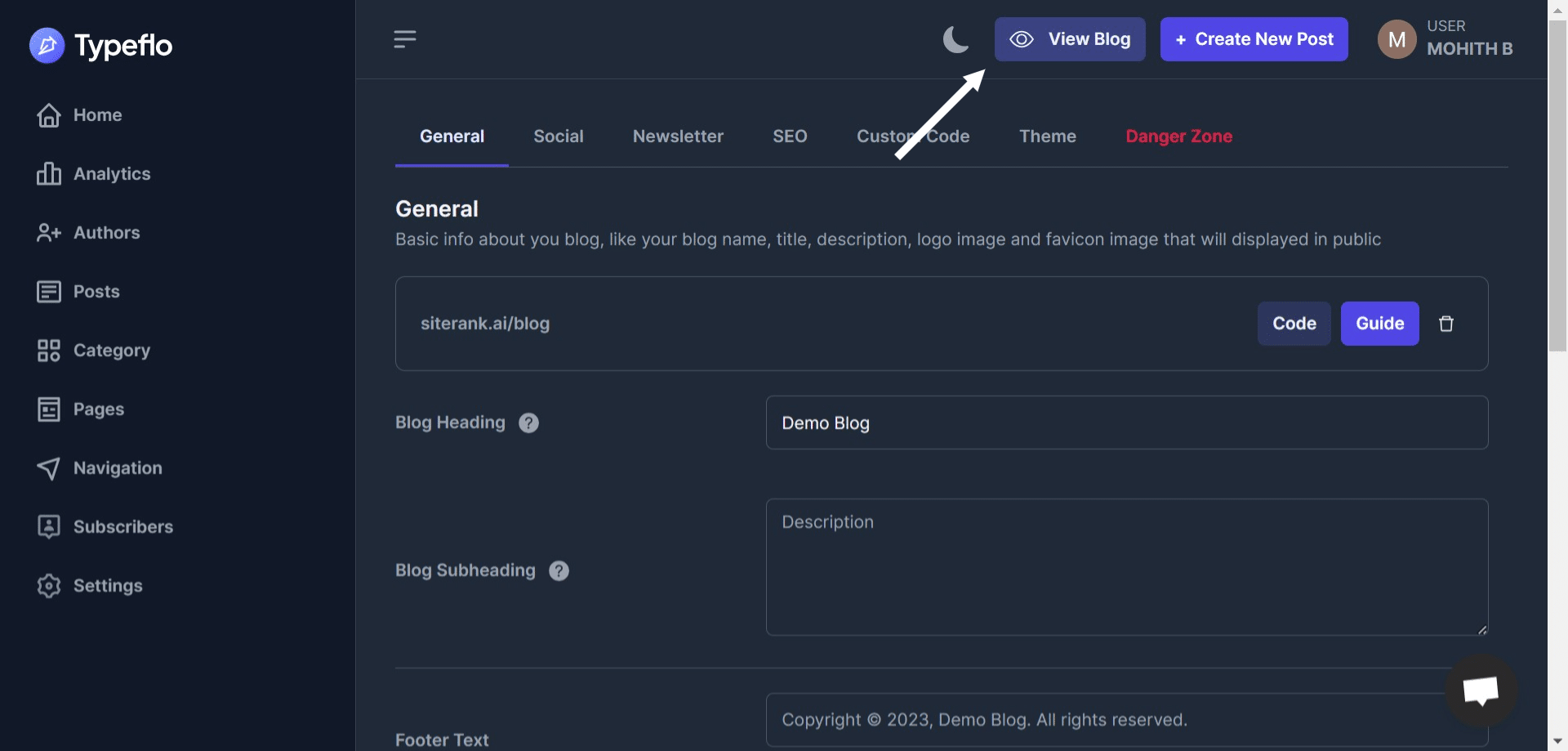
Once added wait for 1-2 min & visit your domain with subfolder or you can simply go to Typeflo Dashboard & click **"View Blog"**

Congratulations!! 🎉 You have now successfully linked your Typeflo website to your subfolder domain! 🚀🔗